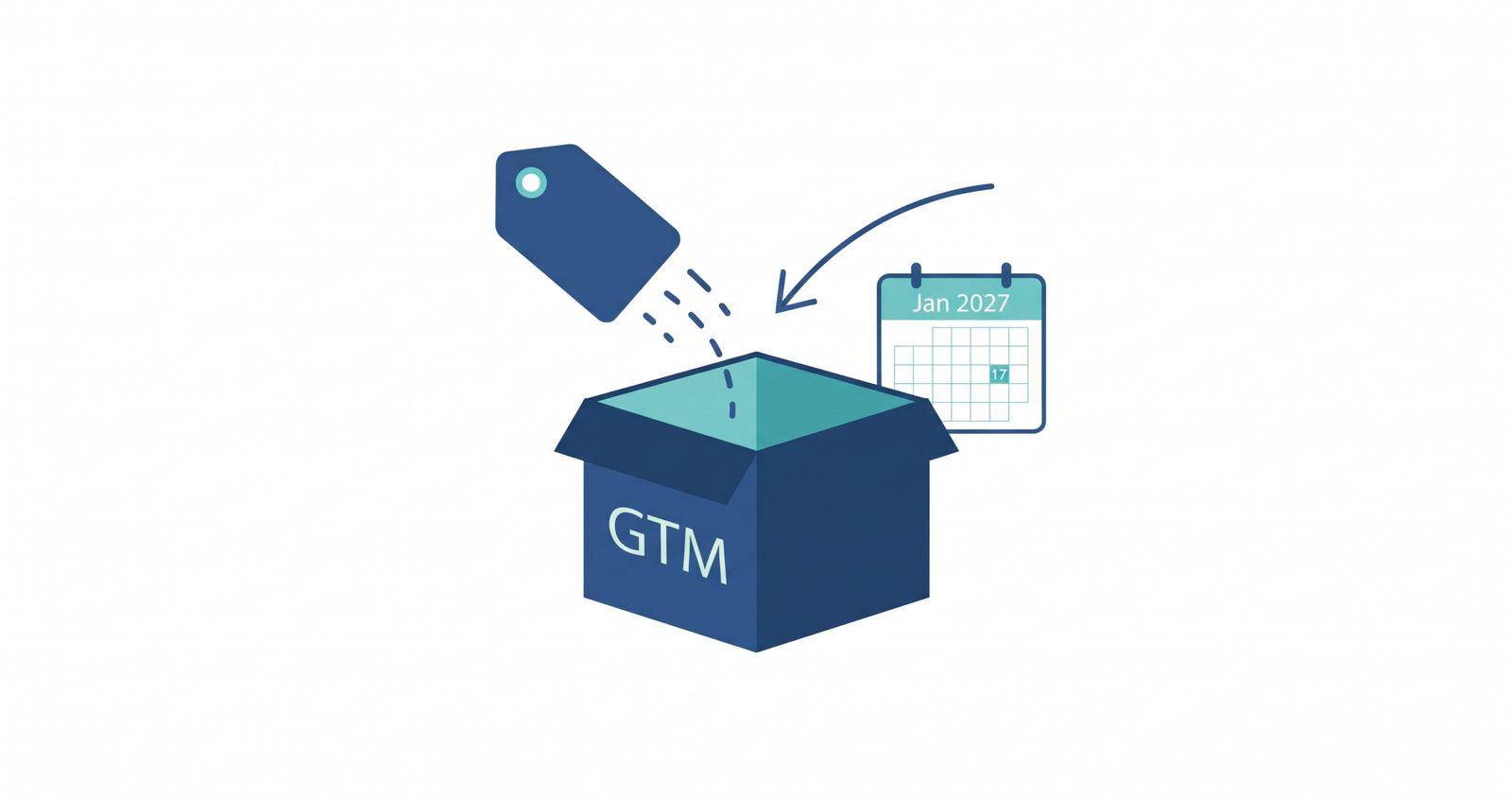
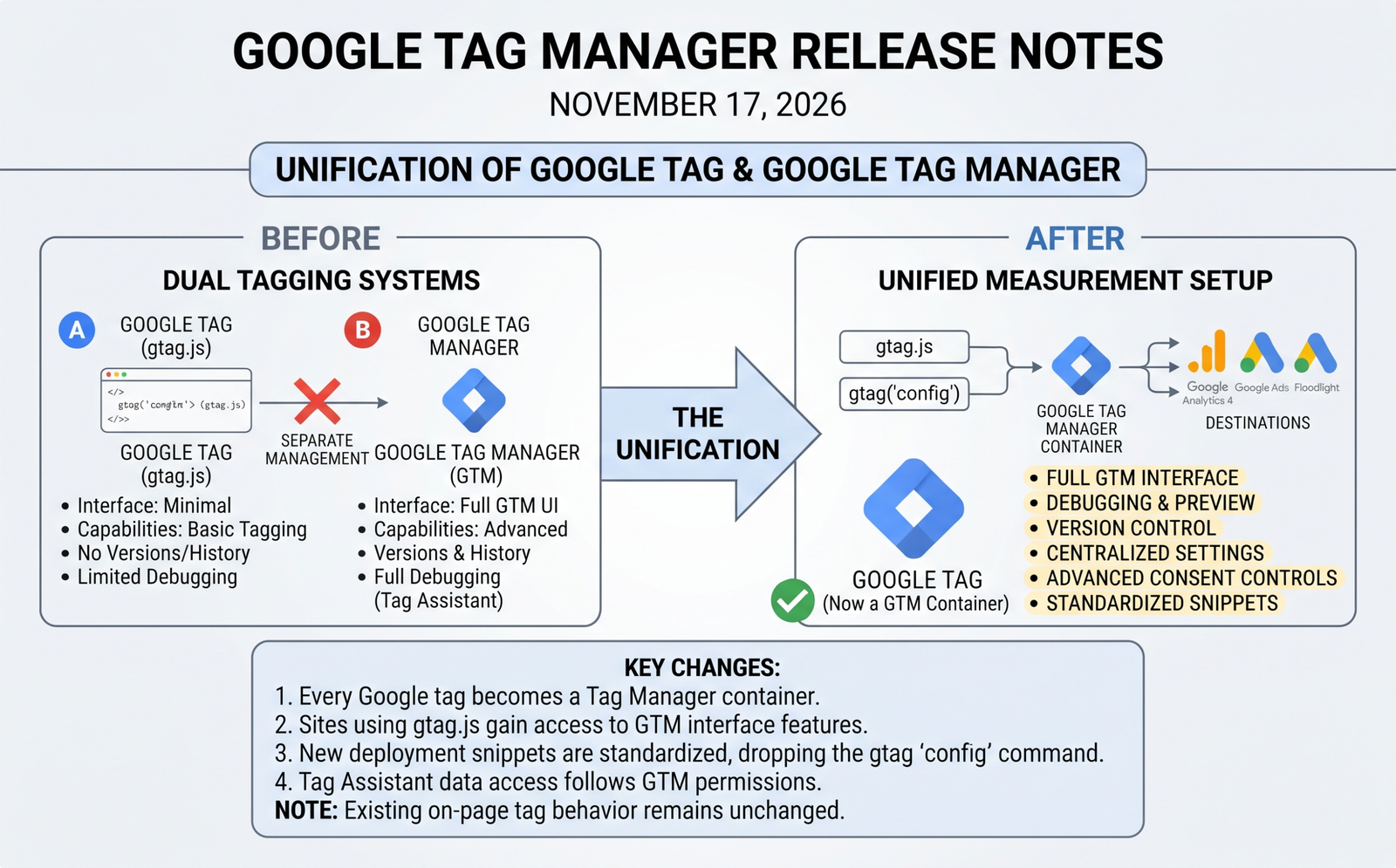
The Google Tag Manager unification is now official. On November 17, 2026, Google added a release note to its Tag Manager Help Center. It confirms that every Google tag becomes a Tag Manager container. If your website uses Google Analytics 4 or Google Ads conversion tracking, this touches your setup, even if you have never opened Tag Manager.
Google says tags will keep behaving the same way on your pages. But one group of websites now has a deadline. Sites with what Google calls an unsupported installation will get the upgrade in January 2027. That is roughly six weeks away, with the holiday season in the middle.
Short answer: Google is folding the Google tag into Google Tag Manager, so each Google tag becomes a Tag Manager container. Your tags keep working the same way on your pages. If your site loads a G-, AW- or DC- tag ID through the Tag Manager snippet with gtag config code, fix it before January 2027.
What Google changed in the November 17 release note
Google has been merging its two tagging products in steps. It first outlined the plan in May 2026. A help page now dated August 20, 2026 describes the plan, according to PPC Land’s timeline of the merger. The November 17 entry in the Tag Manager release notes turns that plan into a documented change.
Here is what the release note says, in plain English:
- Your Google tag becomes a container. In Google’s words, “each Google tag becomes a Tag Manager container.” Sites that only use the Google tag gain Tag Manager features such as interface-driven tagging, debugging and version control.
- On-page behavior stays the same. Google says the upgrade won’t change how Google tags behave on your pages. Each Google product you send data to, such as GA4 or Google Ads, gets its own tag. Google says this preserves your current setup and its automatic event triggers.
- New install snippets are the same for everyone. New deployment snippets drop the gtag config command. Google recommends handling start-up settings with Tag Manager’s initialization triggers instead.
- Permissions move into Tag Manager. Who can see your data in Tag Assistant will be controlled by your Tag Manager container permissions.
- Unsupported setups have a date. They receive the upgrade in January 2027, and Google advises adjusting them before then.
The change is already visible inside accounts. PPC Land reported a test from the day before the release note. An analytics specialist clicked “Configure tag settings” in a Google Analytics data stream, and it opened a Tag Manager container with a GTM- ID. Search Engine Roundtable also covered the release note the evening it went live.
Is your setup an “unsupported installation”? A plain-English test
Google explains the term in its guide to setting up the Google tag correctly for gtag.js. The problem setup is a site that loads a product ID through the Tag Manager snippet (the one that calls gtm.js) and then relies on gtag(‘config’) commands. Product IDs start with G- for Analytics, AW- for Google Ads or DC- for Floodlight. Google says sites using this pattern may see unexpected changes in how their tags behave.
Google also says it emailed users whose containers use this setup. So your first job is simple: search your inbox, and your developer’s or agency’s inbox, for a message from Google about your tag installation.
Use this table to place your own site:
| Setup on your site | What you see in the page code | Status | What to do |
|---|---|---|---|
| Standard Google tag | A script loading googletagmanager.com/gtag/js with your G- or AW- ID, then gtag(‘config’) | Supported | Confirm it sits right after the opening head tag on every page. |
| Tag Manager with a GTM- ID | A script loading gtm.js with GTM-XXXXXX, and Google tags set up inside Tag Manager | Supported | Review container users and permissions. |
| Tag Manager snippet with a product ID | A script loading gtm.js with a G-, AW- or DC- ID, plus gtag(‘config’) lines | Unsupported | Switch to the standard Google tag snippet, or load the container with your GTM- ID. |
| Both a container and a separate Google tag | Two Google scripts in the header, often one from a theme and one from a plugin | Worth a review | Make sure the same ID isn’t sending the same events twice. |
There is a second reason to look. In an October 8, 2026 release note, Google said Tag Manager container snippets now start on container load, regardless of any gtag(‘config’) commands. Those commands now show up in the dataLayer as gtag.config events. If your container uses wildcard custom event triggers, Google warned that some tags may fire when you don’t expect them to.
Why the Google Tag Manager unification matters for your business
Tags are invisible to your customers, so tracking problems rarely show up as a broken page. They show up weeks later as odd numbers in a report. That is why the Google Tag Manager unification deserves a quick check, even though Google says the in-page behavior stays the same.
Online stores
If you run Google Ads for a Shopify or WooCommerce store, purchase conversions tell the bidding system what a good click looks like. If those conversions drop or double, the system learns from the wrong signal. Before you raise spend for the holidays, confirm that every test purchase is recorded once. If sales already look soft, our guide on what to check when a Shopify store gets traffic but no sales covers the rest of the funnel.
Clinics and local service businesses
Eye care, dental, skin and medical clinics, plus HVAC and other home service firms, usually track form submissions, calls and booking clicks as conversions. A booking widget event that quietly stops firing can make it look like your ads stopped working. We walk through that exact symptom in why med spa ads get clicks but no bookings, and the tracking checks apply to any clinic.
Law firms, consultants and B2B companies
Many firms had an agency or freelancer set up tracking years ago. The account may still sit under that person’s login. Once Tag Manager permissions control access to Tag Assistant data, ownership matters more. Make sure the business, not a former vendor, holds admin access.
Campaign websites
Attorney and judicial candidate sites run on short timelines. Donation, volunteer and event sign-ups are the numbers a campaign team watches every week. A tracking gap in the final stretch is hard to fix after the fact, so check these sites now rather than in January.
What to do before January 2027: a 9-step checklist
Most of these steps are quick checks. Steps 5 and 6 may need your developer.
- Search your email. Look for Google’s notice about your tag installation in every inbox tied to your Google Ads, Analytics and Tag Manager accounts.
- Find out how your tags are installed. Open your homepage, view the page source and search for “gtm.js” and “gtag/js”. Write down each ID you find and where it comes from: theme header, plugin, Shopify app or Tag Manager.
- Run Tag Assistant. Google’s guide says to open Tag Assistant, click Add domain, enter your URL and click Connect. Then check the “Google tags found” header for your tag ID with a green or blue status icon.
- Check the Network tab. In Chrome, open Developer Tools, go to Network and refresh the page. If you use the standard Google tag, requests should go to googletagmanager.com/gtag/js, not /gtm.js. For Google Ads, look for requests to googleadservices.com, and for Analytics, analytics.google.com.
- Fix the unsupported pattern. Google gives two routes. Route one: paste the standard Google tag snippet right after the opening head tag on every page, and remove the gtm.js snippet and its stray config lines. Route two is for sites that use Tag Manager for other tags. Keep the Tag Manager snippet, swap the product ID for your GTM- ID and deploy the Google tag inside the container.
- Review wildcard triggers. If your container has custom event triggers that match everything, test them in Preview mode. The new gtag.config events could set them off.
- Audit container users. Remove people who no longer work with you, and keep at least two admins inside the business. Treat container access like admin access to your website: Google says a GTM- container can run third-party scripts and custom HTML tags. That is the same kind of risk we covered in our note on SEO poisoning on hacked WordPress sites.
- Test your money conversions end to end. Submit a test lead form, click a test booking or place a test order. Confirm each one appears once in your GA4 real-time report and in your Google Ads conversion actions.
- Write it down. Keep a one-page tracking map: which IDs, where they load, who owns each account and what you changed on which date. Our website redesign analytics plan covers how to document GA4, GTM and CRM tracking.
If you only have time for one thing this week, do steps 2 and 3. They tell you whether you are in the unsupported group at all.
Common mistakes and myths
Myth: “My tracking will switch off in January”
Google says the upgrade won’t change in-page behavior. The January 2027 date applies to unsupported installations. Google hasn’t spelled out what happens to an unsupported setup that isn’t adjusted. That is the best reason to fix it now.
Mistake: adding a second snippet “just to be safe”
Pasting another tag on top of an existing one can send the same events twice. Inflated conversions look great in a report and then mislead every budget decision that follows. Fix the install instead of stacking code.
Mistake: letting a vendor hold the only admin login
If your agency owns the container, it will also control who sees your Tag Assistant data. Ask for admin access to be added for someone inside your business.
Mistake: publishing changes without Preview
Google’s August help page says container optimization is optional and no changes are made automatically. It also lets you preview changes before publishing. Use that. Test in Preview, then publish on a quiet weekday morning.
Myth: “Visual tagging means I don’t need a tracking plan”
Google’s no-code visual tagging is listed as a beta for Google Ads purchase conversions. It can help with simple events, but it doesn’t decide which actions matter to your business. That is still your call, and it belongs in a written plan. If you plan to spend more on ads, run a website conversion audit before paid ads first.
FAQ
What is the Google Tag Manager unification?
It is Google’s merger of the Google tag and Google Tag Manager. Each Google tag becomes a Tag Manager container, so sites that only use the Google tag gain Tag Manager features like debugging and version control. Google says tags behave the same way on your pages.
Will my Google Ads or GA4 tracking stop working?
Not if your tags are installed the way Google supports. Google says the upgrade doesn’t change in-page behavior. Sites with an unsupported installation get the upgrade in January 2027, and Google advises fixing them before then.
How do I know if I have an unsupported installation?
Check whether your site loads a G-, AW- or DC- ID through the Tag Manager gtm.js snippet and uses gtag(‘config’) commands. Google calls that unsupported. Google also emailed users on containers with this setup, so check your inbox.
How do I fix an unsupported Google tag installation?
Use the standard Google tag snippet right after the opening head tag on every page, and remove the gtm.js snippet and its config lines. If you use Tag Manager for other tags, load the container with your GTM- ID and set up the Google tag inside it.
Who controls access to my tag data after the change?
Your Tag Manager container permissions. Google says access to data in Tag Assistant will be managed through those permissions, so review your container users and keep admin access inside your business.
Do I have to switch from the Google tag to Google Tag Manager?
No. Google describes the new features as an option for Google tag users. A correctly installed standard Google tag remains a supported setup.
The bottom line
In my view, the Google Tag Manager unification is mostly good news. Google tag users gain debugging and version control, and Google says your tags keep working the same way. The risk sits with older, messy installs that Google now labels unsupported, and those have a January 2027 date attached.
Spend 30 minutes this week checking your page source and running Tag Assistant. If you find a G- or AW- ID inside a gtm.js snippet, or you aren’t sure who owns your container, get it fixed before the holidays. If you would like a second pair of eyes on your tracking, my digital marketing services include help with GA4 and Google Ads tracking.
Sources and how we checked this
- Google Tag Manager Help, Release notes for Google Tag Manager, entries dated November 17, 2026 and October 8, 2026.
- Google Tag Manager Help, Set up your Google tag installation correctly for gtag.js, accessed November 18, 2026.
- Google Tag Manager Help, “Updates to Google tag and Google Tag Manager,” dated August 20, 2026 (support.google.com/tagmanager/answer/17079602).
- Google Tag Manager Help, “Manage tagging behavior using the container ID,” accessed November 18, 2026 (support.google.com/tagmanager/answer/17070049).
- PPC Land, Unsupported Google tag installs get the Tag Manager upgrade in January 2027, November 17, 2026.
- Search Engine Roundtable, Google Tag & Google Tag Manager Unification, November 17, 2026.